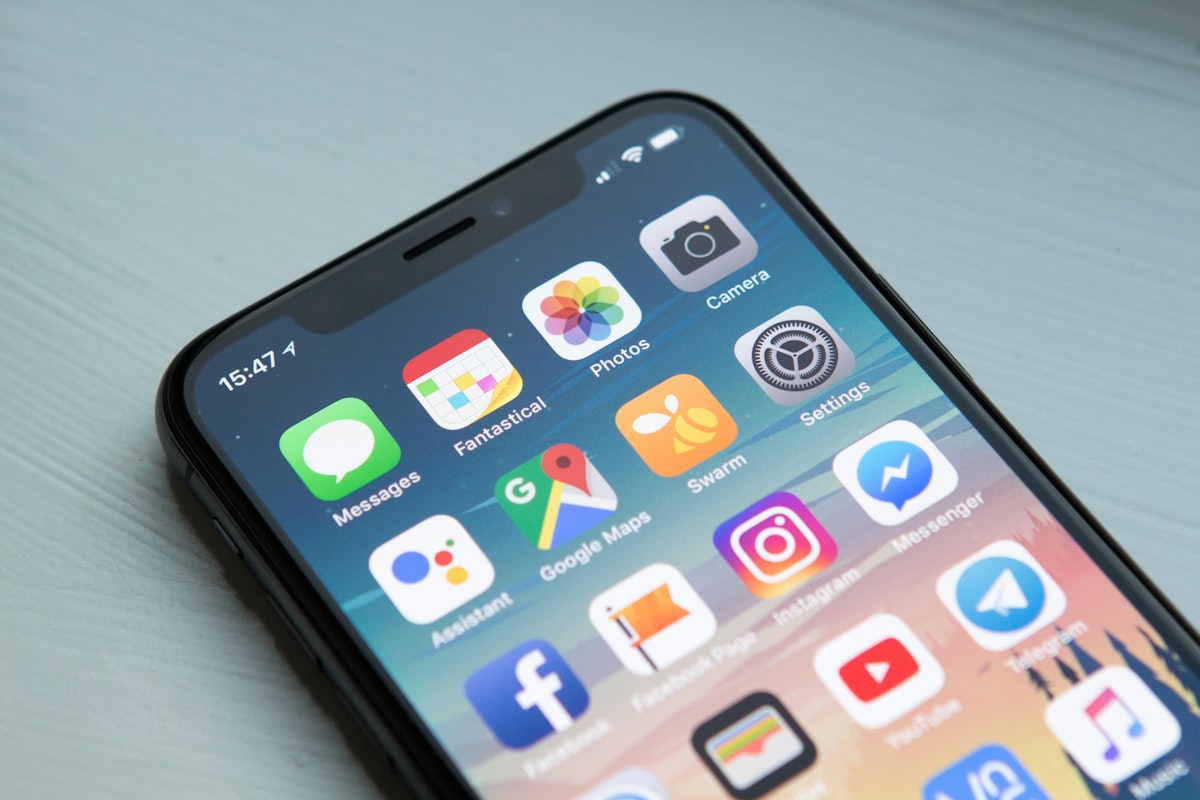
The average person now spends over six hours and thirty-seven minutes per day looking at a screen — and that figure doesn't count work. Every app on your phone was engineered by teams of behavioral psychologists and machine-learning algorithms whose sole mission is to keep you scrolling, tapping, and refreshing. This isn't an accident. It's the notification economy, and your attention is the product being sold. This guide is your systematic escape plan: how to audit where your time actually goes, configure your devices to protect your focus, and use professional-grade tools to take back control of your most finite and valuable resource.
1. The Attention Crisis: Why Your Focus Is Under Attack
There is a war being waged for your attention, and most of us are losing it without even realizing the battle has begun. Harvard psychologists Matthew Killingsworth and Daniel Gilbert published a landmark study in Science magazine showing that people spend nearly 47% of their waking hours thinking about something other than what they're doing — and that this mind-wandering makes them measurably less happy. The smartphone, with its infinite scroll and algorithmically-curated feeds, has turned this natural human tendency into an industrial-scale problem.
Consider what researcher Gloria Mark at the University of California, Irvine discovered: after a digital interruption, it takes the average person 23 minutes and 15 seconds to return to the original task. If you check your phone five times during a work session, you may have lost almost two hours of productive time — not because you were on your phone for two hours, but because the recovery cost of attention is so steep.
The concept of digital wellness emerged as a response to this crisis. It's the practice of deliberately designing your relationship with technology so that it serves your goals and values — rather than the goals and revenue models of the platforms you use. Unlike digital detox (going cold turkey), digital wellness is sustainable because it acknowledges that technology is essential to modern life. The goal isn't elimination; it's intention.
Every time you check your phone without intention, you're paying the most expensive tax imaginable — a tax on your attention, paid not in dollars but in the irretrievable currency of your time. — Inspired by Cal Newport, author of Deep Work
This guide is structured as a five-step intervention you can implement in a single afternoon. By the end, your devices will work for you rather than against you — and you'll have the measurement tools to prove the difference.
2. The Notification Economy: How Apps Keep You Hooked
To fight something effectively, you first need to understand how it works. The modern smartphone ecosystem is built on a business model that is, at its core, incompatible with your well-being: your attention is the product, sold to advertisers in real-time auctions generating billions of dollars per year. The more time you spend on a platform, the more ad impressions can be served, and the higher the revenue. This creates a direct financial incentive for every app to become as psychologically compelling as possible.
The Variable Reward Loop
The mechanism behind compulsive phone checking was first documented by behavioral psychologist B.F. Skinner in the 1950s: the variable ratio reinforcement schedule. In Skinner's experiments, rats pressed levers most obsessively not when they received a reward every time (fixed ratio), but when the reward came unpredictably. Sound familiar? When you swipe open Instagram or pull down your inbox, you don't know if you'll find an exciting new message, a dopamine-triggering "like," or nothing at all. That uncertainty is the hook.
Former Google design ethicist Tristan Harris testified before the U.S. Senate in 2019 that this mechanism was deliberately designed into social platforms. Pull-to-refresh on Instagram mimics pulling a slot machine lever. Infinite scroll removes the natural stopping point that a page bottom provides. Notification badges create a red-dot urgency signal that triggers the brain's threat-detection response — compelling you to clear it immediately.
Former Facebook president Sean Parker admitted in 2017 that the "Like" button was designed to give users "a little dopamine hit every once in a while" to keep them contributing content. The feature was specifically engineered to exploit "a vulnerability in human psychology." This isn't speculation — it's a confession from one of the platform's founders. Source: Axios interview, November 2017.
How Your Data Fuels the Machine
Every tap, scroll pause, re-read, and moment of hesitation on your phone is logged and fed into recommendation algorithms. These systems — now powered by large-scale machine learning — are optimized for a single metric: engagement time. They are extraordinarily good at their job. Netflix's recommendation engine is estimated to save the company $1 billion per year in reduced churn. YouTube's algorithm reportedly drives 70% of all viewing time on the platform.
The result is that you are competing against systems with essentially unlimited computational resources, staffed by some of the most talented engineers in the world, optimized specifically to understand and exploit your individual psychological patterns. The playing field is not level. This explains why willpower alone is never sufficient — structural changes to your device environment are necessary.
Explore The Center for Humane Technology, founded by Tristan Harris, which documents design patterns that undermine user well-being. Cal Newport's Deep Work provides the philosophical and practical framework for reclaiming focused attention in the digital age.
3. Step 1 — Conducting a Screen Time Audit
You cannot manage what you don't measure. Before changing any digital habits, you need an honest baseline. Most people dramatically underestimate their screen time — studies show the average person believes they check their phone about 25 times per day, while the actual average is closer to 96 times. The audit is your reality check.
iOS Screen Time: The Full Walkthrough
Apple introduced Screen Time in iOS 12, and it remains one of the most detailed built-in usage analytics tools on any platform.
iOS Screen Time Setup
iOS 12+- Open
Settingson your iPhone or iPad - Tap
Screen Time - If not enabled, tap Turn On Screen Time
- Tap Continue → select This is My iPhone
- Tap All Activity — toggle Day / Week views
- Scroll to see Most Used apps, Pickups, and Notifications
- Tap any app for its individual usage breakdown
Android Digital Wellbeing
Android 9+- Open
Settingson your Android device - Tap
Digital Wellbeing & parental controls - View the Dashboard with today's usage by app
- Tap the chart icon for full usage breakdown
- Tap any app for its individual stats
- View Unlocks and Notifications counts
- Use the timeline view to see hourly patterns
What to Record During Your Audit
Spend one full week with Screen Time or Digital Wellbeing enabled before changing anything. At week's end, record these data points:
← Scroll table horizontally →
| Metric to Record | Where to Find It | What It Reveals |
|---|---|---|
| Total daily screen time | Main Screen Time / Dashboard screen | Your baseline — the number to improve |
| Top 5 apps by time | Most Used section (weekly view) | Where your time is actually going |
| Daily pickups/unlocks | Pickups (iOS) / Unlocks (Android) | Habit frequency — compulsive checking behavior |
| First pickup time | Pickups → First Pickup (iOS) | How quickly you reach for your phone after waking |
| Total daily notifications | Notifications section | Volume of interruptions hitting you daily |
| Peak usage hour | Hourly bar chart | When your phone competes most with focused work |
| App category breakdown | Category bars (Social, Entertainment, etc.) | Which types of content consume most time |
Reading Your Audit Report: What to Look For
After a week of baseline data, compare your findings to what you'd intended. Most people experience one of three surprises:
- The Invisible Sink: One app consumes dramatically more time than estimated — often 2–3× the person's guess.
- The Frequency Problem: Total screen time isn't extreme, but pickup count is massive (80+ per day), indicating a checking compulsion that fragments attention all day even if individual sessions are short.
- The Notification Tsunami: Hundreds of notifications per day create constant background anxiety even when the phone isn't in hand.
Calculate the hours lost to unintentional phone use. Multiply by 365. Ask yourself: if you had that time back, what would you create, learn, or experience? An hour reclaimed per day equals 15 full 24-hour days per year. Most people find this exercise profoundly motivating.
4. Step 2 — Setting Up Focus Modes on iOS and Android
Focus Modes are scheduled, context-aware device profiles that automatically silence most notifications and surface only what's relevant to your current activity. During Work Focus, only your calendar, work email, and essential tools get through. During Sleep Focus, everything is silenced. The power of Focus Modes lies in designing your device's behavior to match your daily intention.
iOS Focus Mode: Complete Setup Guide
Apple's Focus system (iOS 15+, enhanced in iOS 16 and 17) allows multiple named Focus profiles with granular control over allowed contacts, apps, and Home Screen layouts.
-
Open Settings → Focus
Go to Settings → Focus. Apple provides pre-built templates: Do Not Disturb, Sleep, Personal, and Work. Tap + to create a custom Focus, or tap an existing one to configure it.
-
Configure Allowed Notifications
Tap People to choose who can call or message you — add only the most critical contacts. Tap Apps to select which apps can send notifications. Start by allowing zero apps, then add back only those you genuinely need for that context.
-
Set a Custom Home Screen
Under Options → Customize Screens, choose which Home Screen page appears when this Focus is active. Create a minimal Home Screen showing only the apps you need. Your Work Focus shows productivity tools; your Personal Focus shows hobbies and communication.
-
Link a Lock Screen
Tap Customize Screens and select your pre-created Lock Screen wallpaper for this Focus. This creates an immediate visual signal — when your phone screen wakes, you know exactly which mode you're in.
-
Set an Automation Schedule
Tap Add Schedule to activate Focus automatically by Time (e.g., Work Focus 9 AM–6 PM weekdays), Location (activates at a specific address), or App (activates when you open a specific app like your calendar).
-
Enable Focus Status
Under Options → Focus Status, toggle ON. This allows Messages to display "John has notifications silenced" to people who message you during Focus — preventing social anxiety around your digital boundaries.
Three core profiles: Work (9 AM–6 PM weekdays, calendar + work tools only), Wind Down (8–10 PM, books and music, no social media), and Sleep (10 PM–7 AM, emergency calls from favorites only). Full Apple documentation: Apple Support — Use Focus on iPhone.
Android Focus Mode: Complete Setup Guide
Android's Focus Mode (Digital Wellbeing, Android 10+) pauses selected apps entirely — they become greyed out and cannot send notifications or be opened until you manually unpause them or the scheduled session ends.
-
Navigate to Digital Wellbeing → Focus Mode
Go to Settings → Digital Wellbeing & Parental Controls → Focus Mode. On Samsung One UI, this may appear directly in the main settings panel as Settings → Focus Mode.
-
Select Apps to Pause
You'll see your installed apps with checkboxes. Check every app you want paused during focused sessions — social media, entertainment, news, games. Do not check apps you need for work: browser, email, calendar, communication tools.
-
Turn On and Set a Schedule
Tap Turn On Now to activate immediately, or Set a Schedule to automate it. Choose your days and time range. Selected apps will be paused automatically — opening them during Focus shows a reminder screen.
-
Use the "Take a Break" Option Intentionally
Android's Focus Mode includes Take a Break to temporarily unpause apps for 5, 15, or 30 minutes. Use this deliberately and sparingly — not as a habitual override of your own boundaries.
For version-specific instructions: Google Support — Set up Focus Mode on Android. Samsung Galaxy users: Samsung Digital Wellbeing.
5. Step 3 — The Grayscale Trick to Make Your Phone Less Addictive
Of all the digital wellness interventions available, the grayscale trick is simultaneously the most counterintuitive, the most overlooked, and one of the most effective. The premise is disarmingly simple: turn your phone's display to black and white. No colors. No red notification badges burning in your peripheral vision. No vibrant thumbnails beckoning you to click.
Color is a fundamental tool in any UX designer's arsenal for directing attention. The red notification badge on the Mail app is red for the same reason traffic lights and stop signs are — it activates a primal alerting response. The lush, saturated photographs on Instagram are designed to be visually irresistible. The golden yellow of the Snapchat icon on your home screen is engineered to pop. Remove color, and the psychological pull of these design elements drops dramatically.
Tristan Harris and researchers at the Center for Humane Technology were among the first to advocate for grayscale as a behavioral intervention. Thousands of users report that it significantly reduces compulsive checking behavior. The phone simply becomes less exciting to look at — which is precisely the point.
Enable Grayscale on iPhone (iOS)
Open Settings → Accessibility → Display & Text Size
Scroll down to Color Filters.
Enable Color Filters → Select Grayscale
Toggle Color Filters ON, then select Grayscale. Your screen switches immediately to black and white. Full documentation: Apple Support: Display & Text Size.
Add a Shortcut for Easy Toggling
Go to Settings → Accessibility → Accessibility Shortcut → select Color Filters. Triple-clicking the side button (or Home button) now instantly toggles grayscale — useful when you genuinely need color for navigation, video calls, or photo editing.
Enable Grayscale on Android
Access Developer Options
Go to Settings → About Phone, then tap Build Number seven times quickly until you see "You are now a developer." This unlocks the Developer Options menu.
Enable Grayscale in Developer Options
Go to Settings → Developer Options → Simulate Color Space and select Monochromacy. Your screen switches to grayscale immediately.
Alternative: Digital Wellbeing Bedtime Mode
Many Android devices offer grayscale directly in Settings → Digital Wellbeing → Bedtime Mode — automating grayscale during your scheduled sleep hours without needing Developer Options.
Most people feel genuine discomfort when they first switch to grayscale. Your phone looks "broken" or "boring." That discomfort is your brain recognizing the withdrawal of a stimulus it was trained to seek. Most users report the urge to check their phone compulsively drops within 2–3 days. Give it at least one full week before evaluating effectiveness.
6. Step 4 — Taming the Notification Flood
The average smartphone user receives approximately 65–80 notifications per day. Each is a tiny interruption that costs attention, creates micro-stress, and fragments the cognitive flow necessary for meaningful work. The most transformative single action most people can take is simply turning off every non-essential notification.
A useful mental model: treat notifications like unannounced guests walking into your office. Would you accept 70 strangers tapping you on the shoulder throughout your workday? Yet we accept the digital equivalent without question. The notification model normalized itself so gradually that most people never stopped to consciously consent to it.
🔕 The Notification Audit Protocol
Step 1 — Mass Silence: Turn off ALL notifications for every app. On iOS: Settings → Notifications → [App] → Allow Notifications OFF. On Android: Settings → Notifications → App notifications. Do this for every app without exception.
Step 2 — Whitelist only the essential: Over 14 days, re-enable notifications only for apps where a delayed response would have genuine negative consequences. Most people end up with 3–5 apps: phone calls, one messaging app, and a calendar/reminder tool.
Step 3 — Use "Deliver Quietly" / "Silent" options: For apps that need notifications but not urgency, use Deliver Quietly on iOS (Settings → Notifications → [App] → Immediate Delivery OFF) to batch them into the Notification Summary rather than interrupting in real time.
Step 4 — Schedule a Notification Review time: Check your silenced notifications twice per day at set times (e.g., 12 PM and 5 PM). This batches interruptions rather than spreading them throughout your day.
For email specifically, one of the most evidence-backed digital wellness practices is disabling real-time email notifications entirely and switching to scheduled email processing — typically two to three dedicated sessions per day. Gloria Mark's research shows that email checking anxiety persists even when email isn't actively open, simply because people know notifications could arrive at any moment. Removing that ambient expectation measurably reduces cortisol levels throughout the day.
For your most critical focused work sessions, switch your phone to Airplane Mode rather than relying on Do Not Disturb. DND can be overridden by emergencies and creates a background awareness that notifications are still arriving. Airplane Mode creates genuine cognitive closure — nothing is coming in, and your brain stops monitoring. Keep a wired landline or ask a colleague to be your physical point of contact for genuine emergencies during these sessions.
7. Step 5 — Tools for Tracking Productivity
Digital wellness without measurement is just intention. To close the loop on your screen time audit and focus interventions, you need tools that track not just how much time you spend on devices, but what that time produces. The distinction between screen time (raw hours) and productive time (hours creating meaningful output) is the core insight that separates digital wellness from digital restriction.
The two gold-standard tools in this category are Toggl Track (intentional, self-directed time tracking) and RescueTime (automatic, passive productivity monitoring). They solve different problems and work best together.
Toggl Track: Time Tracking for Deep Work
Toggl Track is a manual time tracker built around the simple act of starting and stopping a timer when you switch between tasks. By consciously starting a timer before beginning a task, you make a micro-commitment that increases follow-through. By stopping it when distracted, you create an honest record of your true deep work hours.
Toggl Track
Free + PaidManual time tracking with project categorization, team reporting, and detailed analytics. Available on web, desktop (Mac/Windows/Linux), iOS, and Android.
Best for: Freelancers, remote workers, and knowledge workers who want to understand where their billable and deep-work hours actually go.
Visit Toggl TrackCreate Projects for Each Major Work Area
Sign up at toggl.com/track (free plan is sufficient for individuals). Create color-coded projects matching your major work categories: "Client Work," "Learning," "Writing," "Meetings," "Admin."
Install the Browser Extension
Install the Toggl Button browser extension (Chrome, Firefox, Safari). This adds a timer button directly to Gmail, GitHub, Notion, Asana, and Trello — so you can start tracking without leaving your workflow.
Enable the Pomodoro Integration
In Toggl's settings, enable the Pomodoro Timer. Set focus intervals of 25 or 50 minutes with 5–10 minute breaks. Toggl alerts you at each interval, creating a natural deep-work rhythm that prevents both distraction and mental fatigue.
Run a Weekly Time Audit Report
Every Friday, open Reports and view your weekly summary. How many hours were deep-focus work vs. reactive communication? What percentage was meetings? Compare to your goals and adjust the following week.
RescueTime: Automatic Screen Intelligence
RescueTime runs silently in the background, automatically logging every application you open and every website you visit, then categorizing each activity by productivity level. It's the most honest accounting of your digital day possible — because it doesn't rely on your memory or self-reporting.
RescueTime
Free + PaidAutomatic time tracking with productivity scoring, focus session alerts, distraction blocking, and weekly email digests. Available on Mac, Windows, Android, and Chrome.
Best for: Anyone who wants an objective, automatic record of how their screen time is actually distributed across productive and unproductive activities.
Visit RescueTimeKey RescueTime Features for Digital Wellness
The Productivity Pulse: RescueTime assigns a productivity score from -2 (very distracting) to +2 (very productive) to every app and website, based on your category settings. At day's end, you get an aggregate Productivity Score (0–100%) showing the ratio of productive to unproductive time. Tracking this daily score over weeks reveals patterns invisible otherwise.
Focus Sessions and Alerts: RescueTime's paid tier offers FocusTime, which blocks distracting websites (customizable list) for a set period. Unlike a simple blocker, RescueTime knows when you've broken focus and can alert you in real time. You can also set a daily productive time goal and receive a notification when you've hit it.
Weekly Email Digest: Every Monday morning, RescueTime emails a comprehensive report of the previous week's digital activity. Seeing that you spent 8 hours on news sites last week creates immediate motivation to change — far more effectively than abstract intentions.
RescueTime logs the titles of documents and websites you visit. Review the RescueTime Privacy Policy before installing, especially if you work with sensitive client data. Data can be deleted from your account at any time. Check with IT and legal before installing on corporate-owned devices.
Other Powerful Digital Wellness Tools
Forest App
Free + PaidGamified focus timer that grows a virtual tree while you stay off your phone. If you leave the app, the tree dies. Earned coins plant real trees through Trees for the Future. Exceptionally effective for habit formation.
Platforms: iOS, Android, Chrome extension
Visit Forest AppFreedom
PaidCross-device website and app blocker working across Mac, Windows, iOS, Android, and Chrome simultaneously. Unique "locked mode" prevents overriding blocks once started — ideal for high-stakes focus sessions.
Platforms: Mac, Windows, iOS, Android, Chrome
Visit FreedomHeadspace
PaidGuided meditation and mindfulness training. Building a daily mindfulness practice is one of the most well-researched interventions for improving sustained attention and reducing compulsive phone checking behavior.
Platforms: iOS, Android, Web
Visit HeadspaceNotion (Focus Dashboard)
Free + PaidUse Notion as a daily intentions dashboard — write your top 3 priorities each morning before opening any other app. This simple ritual primes your brain with your own goals rather than the platform's agenda for you.
Platforms: iOS, Android, Mac, Windows, Web
Visit Notion← Scroll table horizontally →
| Tool | Type | Free Tier | Cross-Platform | Best For |
|---|---|---|---|---|
| Toggl Track | Manual tracking | Yes | Yes | Intentional time accounting |
| RescueTime | Auto tracking | Yes | Yes | Honest screen habit data |
| Forest App | Focus gamification | Limited | Yes | Building focus habits |
| Freedom | Blocker | No | Yes | High-stakes deep work |
| Headspace | Mindfulness | Limited | Yes | Attention capacity training |
| iOS Screen Time | Built-in tracker | Free | iOS only | iPhone/iPad audit baseline |
| Android Digital Wellbeing | Built-in tracker | Free | Android only | Android audit baseline |
8. Building a Personal Digital Wellness Framework
Individual tactics — grayscale here, a Focus Mode there — provide temporary relief. A personal digital wellness framework is a coherent, written document that defines your intended relationship with technology across all contexts of your life. It turns scattered tactics into a consistent philosophy.
📋 The Digital Wellness Personal Policy Template
- My Screen Time Goal: "No more than 2 hours of recreational screen time per day"
- Phone-Free Zones: "Bedroom, dining table, first 60 minutes after waking"
- Notification Whitelist: "Phone calls from Family group, texts from spouse, Calendar alerts only"
- Focus Schedule: "9–12 PM Work Focus, 2–5 PM Work Focus — no social media during these windows"
- Email Schedule: "Processed at 9 AM, 12 PM, and 4 PM only. Notifications permanently off."
- Social Media Budget: "30 minutes per day, accessed through browser only (not app) after 6 PM"
- Weekly Review: "Every Sunday — 20 minutes reviewing Screen Time + RescueTime reports"
- Device-Free Day: "One weekend day per month with phone on silent in a drawer"
The single most important element is the phone-free bedroom. Research by the American Academy of Sleep Medicine and National Sleep Foundation consistently shows that smartphone use in the hour before bed delays sleep onset by 30–60 minutes, reduces REM sleep, and leads to lower cognitive function upon waking. If your phone is your alarm clock, replace it with a dedicated alarm clock. The cost of a $15 alarm clock is trivial compared to the cognitive benefits of a phone-free bedroom.
Place a phone charging station in your hallway, kitchen, or living room — anywhere that isn't your bedroom. Charge your phone there every night. This single environmental change removes the bedtime scroll temptation and the morning reach completely. Thousands of people report this as the most impactful single change they made to their digital wellness — more impactful than any app or setting.
9. The Science Behind Reclaiming Deep Focus
Digital wellness isn't just about feeling better — there is rigorous cognitive science behind why protecting your attention produces measurably superior outcomes.
The Default Mode Network (DMN) is a brain network that activates during mind-wandering, self-reflection, and social thinking. Research by Marcus Raichle at Washington University showed that the DMN is highly active during smartphone use — particularly social media browsing — and that frequent DMN activation is associated with reduced working memory capacity and diminished sustained attention on demanding cognitive tasks.
Conversely, deep work — Cal Newport's term for cognitively demanding, undistracted work — activates the prefrontal cortex's executive attention network. Extended deep work sessions have been shown to strengthen myelin sheaths around neural circuits related to complex reasoning, producing what Newport describes as "deliberate practice" effects: the deep work sessions themselves make you better at the work over time, not just more productive in the moment.
A meta-analysis published in Computers in Human Behavior found that participants who reduced their social media use to 30 minutes per day experienced significant reductions in depression and loneliness after just three weeks. A University of Texas at Austin study found that the mere presence of a smartphone on a desk — face down, silent — reduced working memory capacity by approximately 10% compared to having the phone in another room, simply because the brain expends cognitive resources monitoring and suppressing the impulse to check it.
The ability to perform deep work is becoming increasingly rare at exactly the same time it is becoming increasingly valuable in our economy. — Cal Newport, Deep Work: Rules for Focused Success in a Distracted World
10. Digital Wellness for Families and Children
The stakes of screen time management are highest for children. The developing brain is particularly sensitive to the dopamine dysregulation created by social media and gaming, and the longitudinal effects of heavy screen use during adolescence — on attention, social development, and mental health — are increasingly well-documented.
The American Academy of Pediatrics recommends no screen time for children under 18–24 months (except video chatting), one hour per day of high-quality programming for ages 2–5, and consistent limits for children 6 and older. The World Health Organization offers similar guidelines.
For families with older children and teenagers, these platform-specific tools are essential:
- iOS Screen Time (Family Sharing): Configure parental controls via Apple Family Sharing — set app limits, content restrictions, downtime schedules, and communication limits for your child's Apple devices from your own iPhone.
- Google Family Link: The free Google Family Link app lets parents approve app downloads, set screen time limits, and see weekly activity reports for children's Android devices.
- Common Sense Media: For app and content review by age, Common Sense Media provides independent ratings for thousands of apps, games, websites, and streaming shows.
Research by Jean Twenge at San Diego State University shows that children's screen habits are strongly correlated with their parents'. The most effective intervention for children's digital wellness is an adult in the household demonstrating deliberate, intentional device use — including being fully present during meals, conversations, and play without a phone in hand.
📌 Digital Wellness Quick Reference
11. The 30-Day Digital Wellness Challenge
Behavior change research consistently shows that new habits require environmental design, social accountability, and a clear timeline. This 30-day plan introduces changes progressively — starting with measurement, then structural changes, then reinforcing with accountability.
Week 1 (Days 1–7): Measure Only — Don't Change Anything
Enable Screen Time or Digital Wellbeing and install RescueTime. Let both run for a full week without changing behavior. This creates your honest baseline. Record your stats on Day 7.
Week 2 (Days 8–14): Environment Redesign
Implement all structural changes: enable grayscale, conduct the notification audit (everything off, whitelist only essentials), move your charger out of the bedroom, set up Focus Mode profiles, and install Toggl Track. Don't set usage goals yet — just install the structures.
Week 3 (Days 15–21): Set Intentional Limits
Using your audit data, set app time limits in Screen Time / Digital Wellbeing for your top two or three time-sink apps. Set a daily focus session goal in RescueTime. Begin intentionally tracking work with Toggl. Start a 10-minute morning journaling practice before opening any apps.
Week 4 (Days 22–30): Accountability and Review
Share your goals with one other person. Schedule your first weekly digital wellness review (30 minutes every Sunday reviewing Screen Time + RescueTime reports). On Day 30, compare your numbers to your Day 7 baseline. Most people see a 30–50% reduction in unintentional screen time over this period.
Research on habit formation by Phillippa Lally at University College London found that new habits take an average of 66 days to become automatic — and that missing a day occasionally doesn't derail the process. The goal of the 30-day challenge is to establish systems and create enough positive experience to motivate continuation, not to permanently solve every digital habit in a month.
12. Frequently Asked Questions
Is reducing screen time the same as digital detox?
No — the distinction matters. A digital detox is a total, temporary elimination of devices. While occasionally valuable, detoxes don't change the underlying habits or device configurations that created the problem. Digital wellness is a permanent, sustainable restructuring of your relationship with technology that you can maintain indefinitely in the context of normal modern life.
Will grayscale affect my ability to use certain apps?
Grayscale affects appearance but not functionality. Every app works identically in grayscale. The only genuinely impacted use cases are photo editing (where color accuracy matters) and color-coded work tools. The iOS triple-click shortcut makes it trivial to toggle color on when needed for specific tasks and immediately return to grayscale afterward.
Does Focus Mode completely block calls?
No — both iOS Focus Mode and Android Focus Mode have safety provisions. iOS allows calls from your designated "Favorites" and has an emergency bypass: if the same person calls twice within three minutes, the second call rings through regardless. Android similarly allows starred contacts and emergency calls. You can also configure Focus Mode to allow all calls while blocking only app notifications.
Is RescueTime safe to use on a work computer?
RescueTime logs application and website usage on the device it's installed on. For personal computers used for work, RescueTime is generally appropriate. For corporate-owned devices, check with your IT department first. RescueTime's privacy policy details exactly what data is collected. Data is encrypted and stored on RescueTime's servers — it is not transmitted to your employer.
How do I handle professional expectations around instant email response?
The most effective approach is to set explicit expectations with your manager and key contacts: communicate your email schedule (e.g., "I check email at 9 AM, 12 PM, and 4:30 PM") and provide an alternative for genuine urgencies (a phone call or text). Research by Kostadin Kushlev at the University of British Columbia found that employees who switched to checking email only three times per day reported significantly lower stress without any reduction in perceived responsiveness from colleagues.
Are there evidence-based studies supporting these interventions?
Yes. The grayscale intervention has been referenced extensively by the Center for Humane Technology. Notification reduction has been studied by researchers at Florida State University, who found that even receiving a notification (without checking it) divides attention sufficiently to reduce task performance. App time limits have been tested in randomized controlled trials at the University of Pennsylvania. All findings are accessible via Google Scholar.
What is the best first step for someone overwhelmed by their screen time?
The single highest-leverage first action is the notification audit — turning off all notifications and whitelisting only 3–5 essential apps. This doesn't require learning any new tools or changing your habits. It simply removes the ambient interruption pressure that makes everything else harder. Do this today, and notice the difference in your background stress level within 48 hours.
13. Conclusion: Designing Your Intentional Digital Life
The notification economy is a system designed by some of the most sophisticated behavioral engineers in history to maximize the time you spend inside their platforms. It's not a fair fight if you're relying on willpower alone. But it is a fight you can win — not by abandoning technology, but by redesigning the environment in which you use it.
The five steps in this guide form a coherent system. The screen time audit gives you honest data. Focus Modes create structured protection for your most valuable cognitive hours. The grayscale trick removes the engineered visual seduction of your home screen. The notification cleanse eliminates ambient anxiety. And productivity tools like Toggl Track and RescueTime close the loop by showing you not just how much less time you're wasting, but how much more you're actually creating.
The goal is not a phone-free life — it's an intentional digital life. One where you open an app because you decided to, not because an algorithm decided for you. Where you put your phone down at dinner because you chose to be present, not because the battery died. Where your device serves your deepest priorities rather than the quarterly earnings goals of platforms you'll never think about on your deathbed.
Start with the audit. One week of honest data will show you everything you need to know. The rest follows naturally from there.
🎯 Your Action Plan — This Week
- Today: Enable iOS Screen Time or Android Digital Wellbeing. Let it run for 7 days untouched.
- Day 7: Review your data. Record your top 5 apps, pickup count, and notification volume.
- Day 8: Conduct the notification audit — turn all notifications off, whitelist only 3–5 essential apps.
- Day 8: Enable grayscale with the triple-click shortcut for easy toggling.
- Day 8: Create your Work Focus Mode schedule and activate it.
- Day 9: Sign up for Toggl Track (free) and track your first intentional work session.
- Day 9: Install RescueTime (free) to begin building your automatic baseline.
- Day 30: Compare your numbers to Day 7. Celebrate what you've reclaimed.
Post a Comment